Connect your Google Calendar
Sign in with Google and connect your calendar. Upcoming appointments are picked up automatically, including appointments already on your calendar.
Google removed SMS notifications from Google Calendar on January 7, 2019. Since then, Google Calendar notifications have been delivered on your phone, in your browser, or by email — not as SMS messages. And those notifications are personal to your account, not a built-in way to text your clients before appointments. If you want client SMS reminders, you need a separate reminder tool connected to Google Calendar.
What changed, what still exists, and what to use instead.
Before January 2019 — Google Calendar had an SMS notification option. It was part of Google Calendar's own notification system — a reminder sent to you through your Google account settings, not a client-reminder workflow for appointment businesses.
January 7, 2019 — Google removed SMS notifications from Google Calendar. Google said that people who had been receiving SMS notifications would instead get in-app/browser/mobile notifications and email notifications.
Since 2019 — Google Calendar still has notifications, but the current supported notification types are delivered on your phone, in your web browser, or by email. Google also says notification settings are personal to your account and do not determine notifications for other people who have access to the calendar.
| Notification type | Who receives it | Format | Does this text your client? |
|---|---|---|---|
| Email reminder | Your own Google account | No | |
| Push / phone notification | Your own Google account | App / device notification | No |
| Browser / desktop notification | Your own Google account | Browser or desktop alert | No |
Google Calendar can still remind you. It does not automatically text the client who has the appointment with you.
If the goal is to text your clients before appointments, the job is different from Google Calendar's old SMS notifications. You need something that can read your Google Calendar events, resolve the client's phone number, send the reminder at the right time, and give the client a simple way to cancel.
That is where Etisia fits. It sits on top of Google Calendar and adds the client reminder layer Google Calendar never really had.
You keep using Google Calendar the way you already do. Etisia handles the appointment reminder workflow on top.
| Google Calendar SMS (before 2019) | Etisia SMS reminders | |
|---|---|---|
| Who gets the message | You | Your client |
| Message type | Basic Google Calendar notification | Custom reminder text |
| Timing | Personal reminder timing | Appointment reminder timing |
| Cancellation link | No | Yes |
| Phone number handling | Your own account setup | Client number resolution workflow |
| Still available | No | Yes |
How to set it up
Sign in with Google and connect your calendar. Upcoming appointments are picked up automatically, including appointments already on your calendar.
Pick a template, choose when reminders should send, and turn the workflow on.
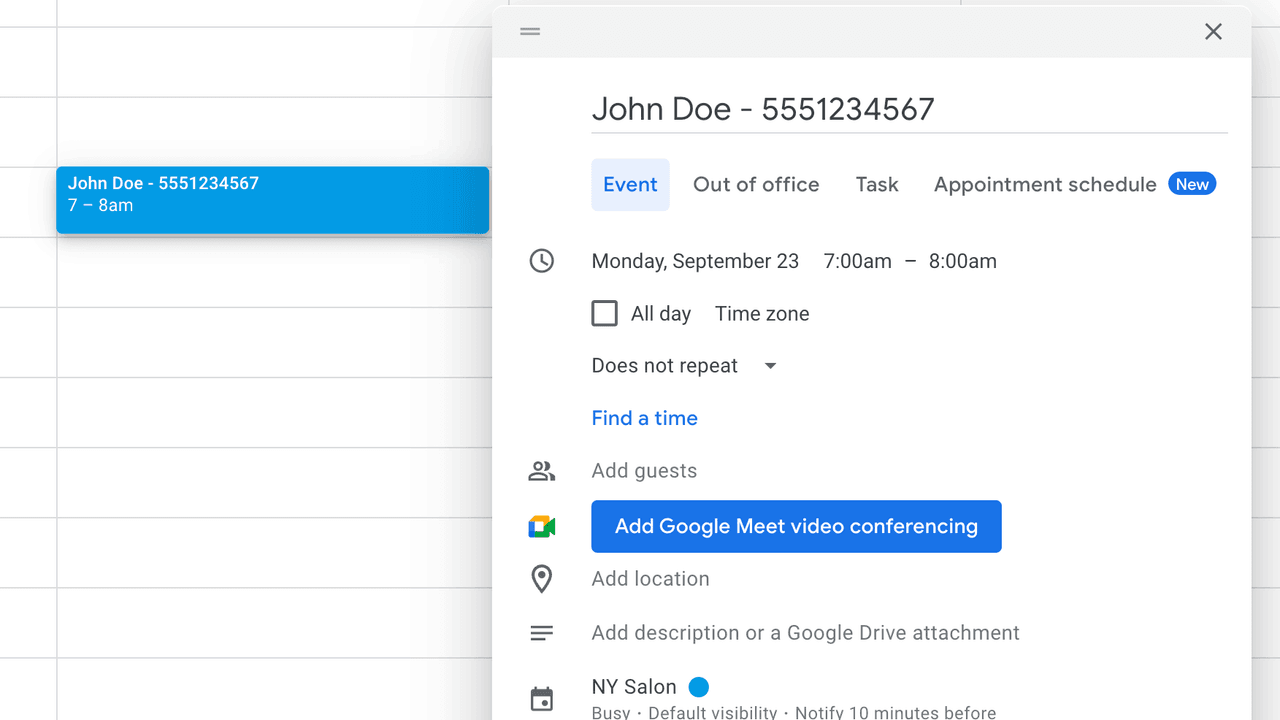
Add contacts in Etisia or include the client's number in the event title so reminders can go out cleanly.
Once the setup is done, reminders go out automatically and clients can cancel through the SMS link.
A quick vote helps us improve this playbook.
If you are evaluating Google Calendar SMS reminders, these are the most useful next pages to compare.