How to Add a Client Phone Number to a Google Calendar Appointment

Google Calendar has no built-in phone-number field for clients. There is no structured place to store the mobile number for the person you're seeing. If you want to send SMS reminders from Google Calendar, you need a reliable way to resolve that number for each appointment. Etisia does that by matching client names to saved contacts or picking up phone numbers directly from the event.

No phone-number field in Google Calendar? That's normal. Here's how to make reminders work anyway.

Why this problem exists in the first place

Google Calendar was built around meetings, not appointment workflows. It gives you a title, date, time, description, location, and attendee emails — but it does not give you a dedicated client phone-number field.

That means every business using Google Calendar for appointments ends up inventing its own system: some put the number in the title, some put it in the notes, some rely on memory, some keep contacts somewhere else entirely.

That works until you want reminder automation. Then the missing number becomes the silent failure point.

The cleanest way to do this

For most businesses, the best setup looks like this:

  • Import your existing contacts once
  • Use the client's name in the Google Calendar event title
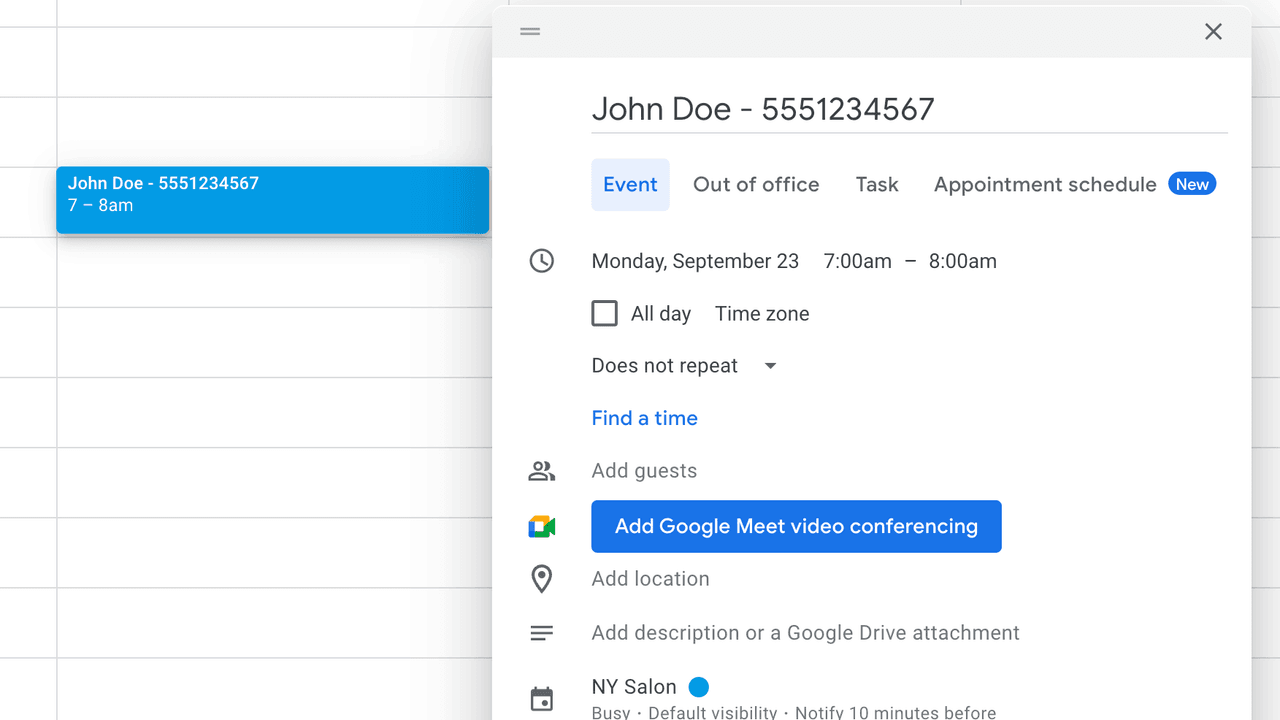
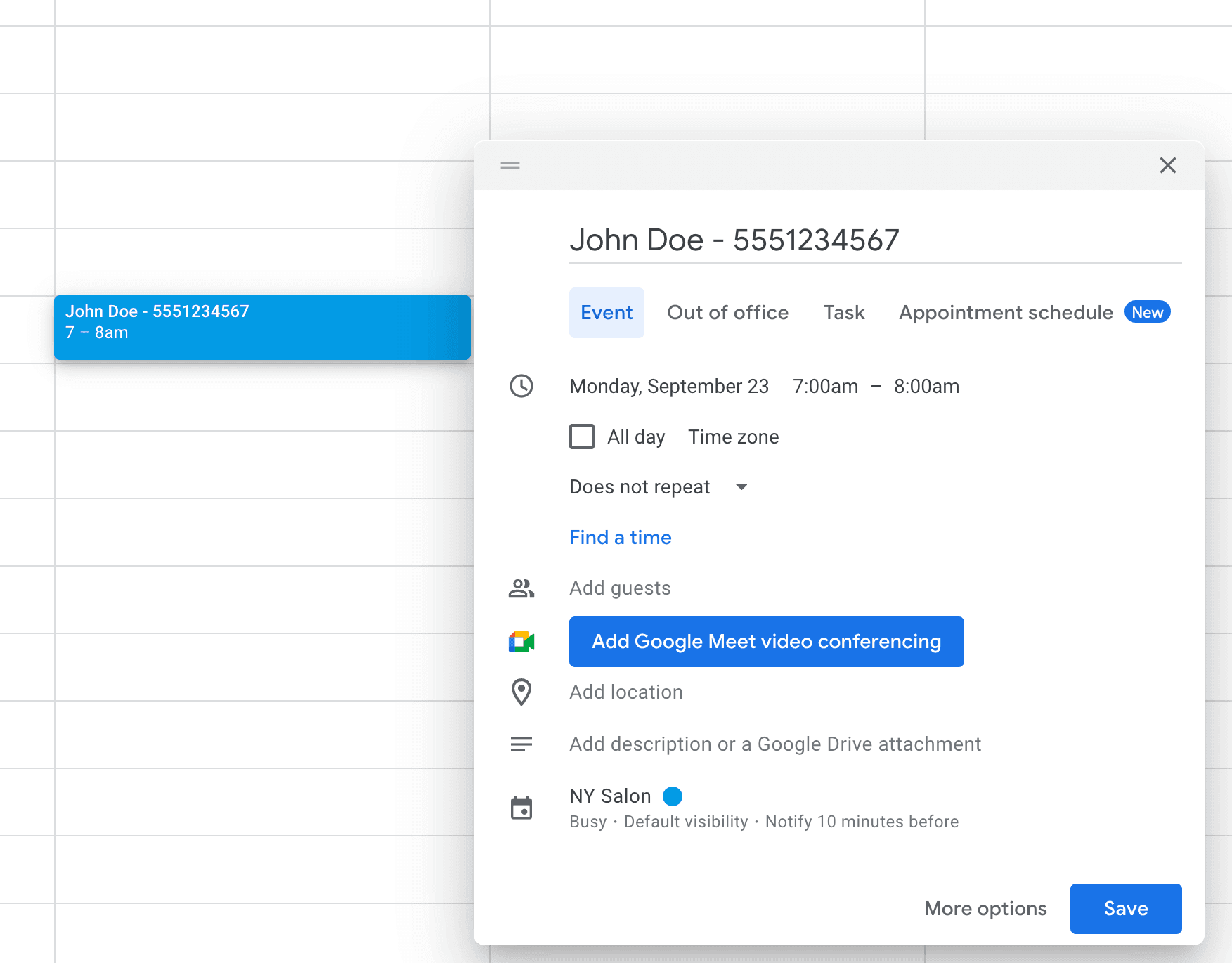
  • Only add the phone number directly to the title for brand-new clients
  • Review any unmatched appointments before the reminder goes out

How Etisia finds the right number

There is no single "correct" place for a client number in Google Calendar, because Google Calendar never created one. Etisia handles that by supporting multiple resolution methods.

1

Best for returning clients

Name-based contact matching

If the client already exists in your Etisia contacts, you only need their name in the event title. For example, an event like "Sarah Jones haircut" can be matched to Sarah's saved contact record and resolved automatically. Once a client is saved, you do not need to keep typing their number into future appointments.
2

Best during setup

Import your phone contacts

Import your existing contacts as a .vcf file. Once they are in Etisia, future appointments can be matched by name instead of requiring the number on every event. This is the fastest way to make your existing client base usable for reminders without cleaning up every single calendar event manually.

3

Best for new clients

Put the number in the event title

Add the appointment with both the client name and number in the title, for example: Jane Doe 0412 345 678. Etisia can detect the number from the title and use it for reminders. That also reduces friction for first-time bookings made by phone, text, or DM. It works well, but it makes event titles messier than name-based matching.

4

Best for high-value bookings

Add the contact manually

Create a contact in Etisia with the client's name and phone number. After that, future events with that name can be matched automatically. This is the most controlled method when you want to make sure a high-value booking is set up correctly.

What if there's more than one number on the appointment?

This happens more often than people expect. A title or notes field might include both a business number and a client number, or an old number plus a new one.

Etisia is built to choose the most likely client number and avoid obvious self-matches. The goal is to reduce the chance of texting the wrong number or sending a reminder to yourself.

This is exactly why visible review states matter: if a number looks wrong or can't be resolved cleanly, the appointment should be flagged instead of handled blindly.

Setup steps

How to set it up

Import your existing contacts

Start by importing the clients you already have. That gives Etisia a base for name matching right away.

Screenshot coming soon

Use names for returning clients

For appointments with existing clients, just put the client's name in the event title. Etisia can match the name to the saved contact.

Screenshot coming soon

Add the number in the title for new clients

If the client is new and not in your contacts yet, include the phone number in the event title so the reminder can still go out.

Screenshot coming soon

Review unmatched events

Watch for appointments flagged for review and resolve them before the reminder window.

Screenshot coming soon

Next step

How phone-number matching works in practice

This walkthrough shows how an event with only the client name gets matched to a contact and becomes reminder-ready.

Import contacts once. Use names from then on.

Preview of the 45-second Etisia setup video

FAQ

Frequently asked questions

Short answers to the most common Google Calendar reminder questions.

Does Google Calendar have a phone-number field?
No. Google Calendar events include things like title, date, time, description, location, and attendee emails — but no dedicated client phone-number field.
What if my team puts numbers in different places?
That is common. Etisia is designed to handle real-world calendar habits, but the more consistent your team is, the cleaner reminder setup becomes.
What phone-number format works?
Common phone-number formats with spaces, dashes, parentheses, or country codes can be handled. The goal is to resolve a valid usable number without forcing one rigid style.
What if I type the wrong number?
If the number cannot be resolved cleanly or looks invalid, the reminder should be skipped and flagged instead of sent blindly.
Can I import contacts so I don't need numbers on events?
Yes — and for most businesses, that is the best long-term setup. Once contacts are imported, returning clients can usually be matched by name.

Was this helpful?

A quick vote helps us improve this playbook.

Continue exploring

If you are evaluating Google Calendar SMS reminders, these are the most useful next pages to compare.