Open reminder settings
Go to Settings → Reminders to see your current timing and message configuration.
The best reminder timing depends on how far in advance people book and when you need them to act. For many businesses, a strong starting point is 1 day before. For same-day or short-notice appointments, 1 hour before often works better. On Pro, you can combine up to 3 timing windows — for example, 1 day before + 1 hour before — so clients get both a heads-up and a final nudge.
Start with one smart timing window. Add more only when your booking pattern needs it.
| If this sounds like your business | Start with | Why |
|---|---|---|
| Most appointments are booked a day or more in advance | 1 day before | Gives clients time to cancel or reschedule |
| Most appointments are same-day or short notice | 1 hour before | Lands closer to the actual appointment |
| Appointments are booked weeks ahead | 1 week before or 10 days before | Catches people before they forget entirely |
| You want a heads-up plus a final nudge | 1 day before + 1 hour before (Pro) | One reminder early, one reminder close |
| You have very early appointments | Your normal timing plus quiet hours | Prevents reminders from landing too early |
You do not need the perfect setup on day one. Pick a sensible default, then adjust based on what your bookings actually look like.
For many appointment businesses, 1 day before is the simplest place to start. It reaches clients early enough to cancel or reschedule, but close enough to the appointment that it still feels relevant.
This works especially well for: salons, clinics, tutors, therapists, trainers, and most appointments booked at least a day in advance.
If your clients usually book ahead, "1 day before" is often easier to work with than a reminder that lands too close to the appointment.
If bookings happen only a few hours before the appointment, 1 hour before usually makes more sense than an earlier reminder window. It lands close enough to be useful without feeling redundant.
If people book weeks in advance, they often need an earlier reminder first. 1 week before or 10 days before works well here. On Pro, you can pair that with 1 day before or 1 hour before for a second nudge.
For long sessions, consultations, or first-time clients, a single reminder may not be enough. A good Pro setup is often 1 day before + 1 hour before: the first gives time to act, the second catches last-minute forgetfulness.
This is where timing alone is not enough. A technically correct reminder can still be a bad reminder if it lands too early in the morning. That is why quiet hours matter.
Immediate is useful when you want an appointment to trigger an SMS almost right after it is created. It works especially well for short-notice or manual booking workflows. In many cases, it works best as part of a multi-window setup rather than your only reminder.
Quiet hours are what make reminder timing feel professional. If a reminder would otherwise fire at an unsociable hour, quiet hours hold it and send it later at a more reasonable time instead.
That matters most when: you have early-morning appointments, you use shorter reminder windows, clients book at odd times, or you want reminders to feel helpful not intrusive.
The goal is not just "send on time." The goal is "send at a time that still feels normal."
Etisia supports 11 timing options. The most common ones are visible first, and the rest can be expanded when needed.
Primary options: Immediate (2 minutes after adding to calendar), 1 hour before, and 1 day before.
More options (behind "Show More"): 15 minutes before, 2 hours before, 6 hours before, morning of the appointment, 2 days before, 1 week before, 10 days before, and 1 month before.
Starter includes 1 timing window. Pro supports up to 3 timing windows per calendar, so you can combine an early reminder with a closer follow-up reminder.
If you are on Starter, keep it simple: choose the single reminder that best fits your booking pattern.
If you are on Pro, use multiple timing windows when the appointment needs both time to act and a final reminder close to the appointment.
How to set it up
Go to Settings → Reminders to see your current timing and message configuration.
Pick the timing that fits your appointment pattern. On Starter, choose one. On Pro, you can select up to three.
A strong place to start is 1 day before for booked-ahead appointments, or 1 hour before for same-day bookings. Then adjust only if your real booking pattern calls for it.
Turn on quiet hours so reminders do not land too early in the morning or at odd hours.
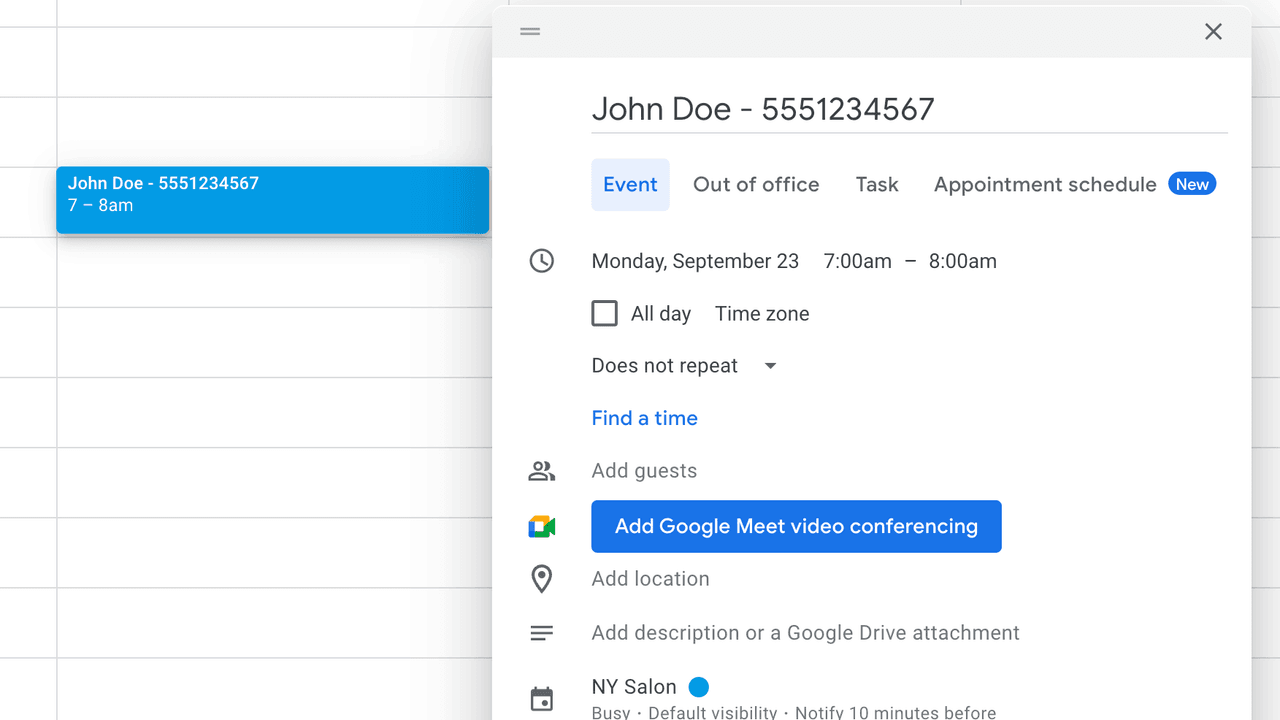
If you have 7 AM or 8 AM appointments, quiet hours matter almost as much as the reminder timing itself.
Short answers to the most common Google Calendar reminder questions.
A quick vote helps us improve this playbook.
If you are evaluating Google Calendar SMS reminders, these are the most useful next pages to compare.