
How to Add SMS Reminders to Google Calendar

Google Calendar can remind you, but it does not send SMS reminders to your clients. If you want automatic text reminders before appointments, you need an SMS reminder tool connected to your calendar. Etisia works on top of Google Calendar: it picks up your appointments, resolves the client's phone number, and sends reminders automatically — without changing how you book.

Keep Google Calendar. Add SMS reminders. No new booking system.

What Google Calendar does — and what it doesn't

Google Calendar is great for managing your schedule. It is not built to run client reminder workflows.

What Google Calendar does — and what it doesn't
What Google Calendar does What it doesn't do
Sends email reminders to the calendar owner Send text reminders to the client
Sends push notifications to the calendar owner's phone Send reminders to people who are not using Google Calendar
Lets you choose basic reminder timing like 10 minutes, 30 minutes, or 1 day Customize the message, add a cancellation link, or manage reminder status per appointment

That is the gap Etisia fills. You keep using Google Calendar the way you already do, and Etisia adds the SMS reminder layer on top.

Setup steps

How to set it up

Connect your Google Calendar

Sign in with Google and connect the calendar you already use. Once connected, Etisia can start reading upcoming appointments and preparing reminders automatically.

Already have a full calendar? You do not need to recreate anything. Existing upcoming appointments are picked up automatically. You can also create a separate calendar in the Google Calendar app for free — handy if you want to keep business appointments apart from personal ones.

Connect your Google Calendar once and upcoming appointments are picked up automatically.
Pick your SMS template

Choose from 20 ready-made templates or write your own.

Keep your message short. If it stays under 160 characters, it is easier to read and usually cheaper to send.

Choose a template or customize your own reminder without rewriting every message by hand.

Set your timing

Choose when reminders should go out. Etisia shows the most common options by default — 1 hour before (recommended) and 1 day before (recommended) — with a "Show More" toggle revealing the full set: immediate, 15 minutes, 1 hour, 2 hours, 6 hours, morning of, 1 day, 2 days, 1 week, 10 days, and 1 month before the appointment. On the Pro plan, you can select up to 3 timing windows per calendar. Starter plan includes 1 timing window.

Same-day bookings are handled automatically. If a reminder window has already passed, Etisia skips it and sends the next one.

Reminder timing is flexible enough for short-notice bookings and longer lead times.

Make sure Etisia can find the client's number

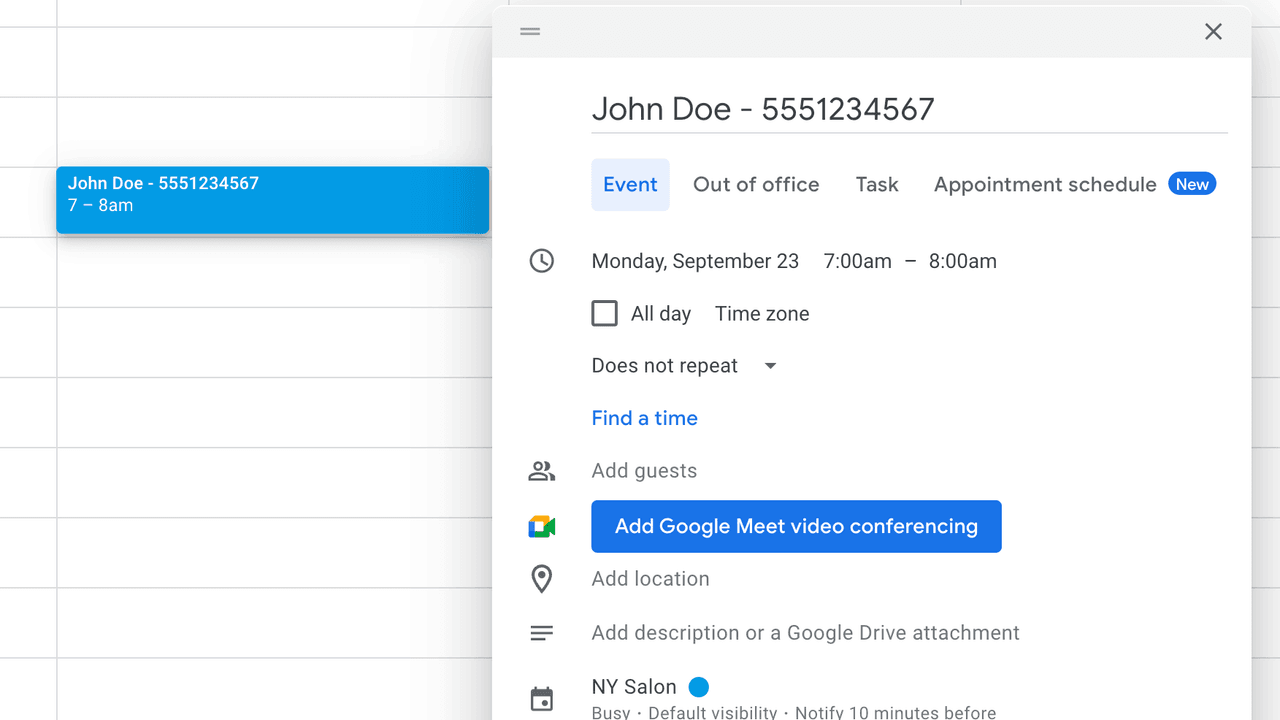
Google Calendar has no client phone-number field, so Etisia needs another way to resolve the number. You can add contacts in Etisia manually, import your existing phone contacts as a .vcf file, or include a phone number directly in the event title. Once a contact is saved, Etisia can match the client name in the appointment title and resolve the right number automatically.

Import your contacts once, and returning clients usually only need their name in the calendar event — not their number every time.

If Etisia can match the appointment title to a saved contact, you do not need to type the number every time.

Reminders go out automatically

Before finishing setup, Etisia gives you a set of additional options — all optional, three recommended. Enable cancellation links so clients can cancel via SMS. Turn on SMS feedback so reminder status shows directly on your Google Calendar event titles. Enable opt-out so new clients receive a one-time welcome SMS with an opt-out link (recommended for compliance). Toggle quiet hours so reminders don't fire overnight. You can also enable auto-contact creation and email alerts for incorrect calendar entries. Once everything is set, reminders go out automatically. The client gets a text with their appointment details. You see reminder status on the calendar event.

In the US and Canada, reminders come from a numeric sender. In the UK, Ireland, and Australia, they come from a branded alphanumeric sender ID. Clients can opt out by replying STOP where inbound is supported. The cancellation link in every SMS works regardless of sender type. See the supported countries page for full details.

This is the end state: the appointment stays in Google Calendar and the reminder workflow runs on its own.

What reminder status looks like in Google Calendar

Etisia makes reminder status visible inside the calendar you already use. Instead of wondering whether a text went out, you can see the result directly on the appointment.

Google Calendar
TODAY
17
TOMORROW
18
09:00
Lisa Miller (SMS sent ✅)
Noah Patel no SMS9:30 AM
10:00
Sarah Johnson SMS ready ✅2:00 PM
Eva Davis (SMS sent ✅)
Emma Wilson SMS needs review ⚠️10:00 AM
11:00
12:00
Jane Smith (SMS sent ✅)
13:00
14:00
Anna Taylor (SMS ready ✅)
15:00
16:00
041 987 654 (SMS sent ✅)
You do not need to open a separate app just to check reminder status. It shows up right inside your Google Calendar event titles.
1

SMS sent or ready

(SMS sent ✅...) or (SMS ready ✅...) means the reminder was already sent or is queued successfully.

2

Needs review or opt-out

(SMS needs review ⚠️...) or (SMS Opt-Out ⚠️...) means the phone number needs attention or the client opted out.

3

Missed or missing

(SMS missed ❌...) or no SMS marker at all means the reminder could not be delivered or no phone number was resolved for that appointment.

Example SMS reminder

This is the kind of message a client sees when a reminder goes out.

Short, clear, and easy to act on.

Next step

How the setup works in practice

This walkthrough shows how to connect Google Calendar, choose a template, set the timing, and send the first SMS in under a minute.

No booking system. No migration. Just Google Calendar.

Preview of the 45-second Etisia setup video

FAQ

Frequently asked questions

Short answers to the most common Google Calendar reminder questions.

Doesn't Google Calendar already send reminders?
Google Calendar can remind the calendar owner by email or push notification. It does not send SMS reminders to your clients.
Do I have to switch booking systems?
No. Keep booking by phone, text, DM, walk-in, booking form, or whatever you already use. As long as the appointment ends up in Google Calendar, Etisia can work from there.
What if the phone number isn't on the appointment?
If the client's name is in the event title, Etisia can match it to a saved contact. You can also include a phone number directly in the event title. If no number is found at all, no SMS is sent and the appointment is flagged for review.
Do reminders work for appointments already on my calendar?
Yes. When you connect your calendar, upcoming appointments that are already booked are picked up automatically.
What happens when a client cancels?
When a client taps the cancellation link in the reminder, the appointment is removed from your Google Calendar and you get notified right away so you can refill the slot.

Was this helpful?

A quick vote helps us improve this playbook.

Continue exploring

If you are evaluating Google Calendar SMS reminders, these are the most useful next pages to compare.